4: Understanding Kubernetes: Deep Dive into kubectl create vs kubectl apply, Labels, and Selectors
Kubernetes (K8s) provides several commands to manage resources effectively. This blog explores concepts like kubectl create vs kubectl apply, YAML configurations, labels, and selectors with examples.
kubectl create vs kubectl apply
kubectl create: This command is used to create new resources in Kubernetes. However, it only verifies the resource's name during creation. If the resource already exists, it throws an error.
Example:kubectl create -f deployment.yamlIf
deployment.yamldefines a resource already present in the cluster, you'll get an error like:Error from server (AlreadyExists): deployments.apps "example-deployment" already exists
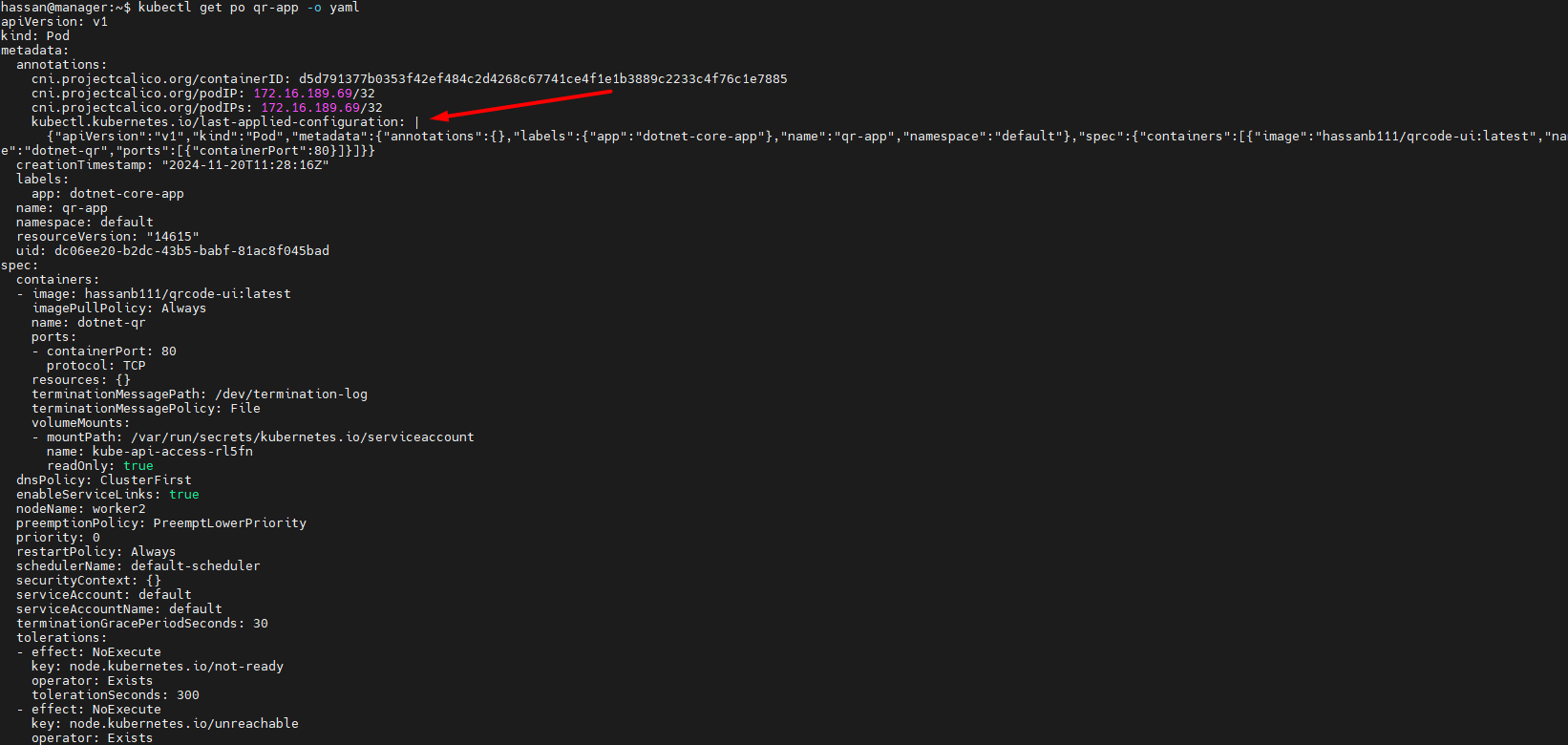
kubectl apply: Unlikecreate, theapplycommand allows you to modify resources declaratively. It compares the Live Object Configuration (LOC), stored inetcd, with the Last Applied Configuration (LAC).When you use
apply, Kubernetes updates the resource and retains a history of the last applied configuration for reference.
Example:kubectl apply -f deployment.yaml
How Kubernetes Works with YAML Files
You define resources in a YAML file.
When you create or apply the YAML, Kubernetes converts it into a Live Object Configuration (LOC) stored in
etcd.For
kubectl create, there is no Last Applied Configuration (LAC) stored, as the command doesn't track changes.For
kubectl apply, both LOC and LAC are maintained, enabling smooth updates.
Viewing Pod Details
To understand the state of a pod:
View complete YAML configuration:
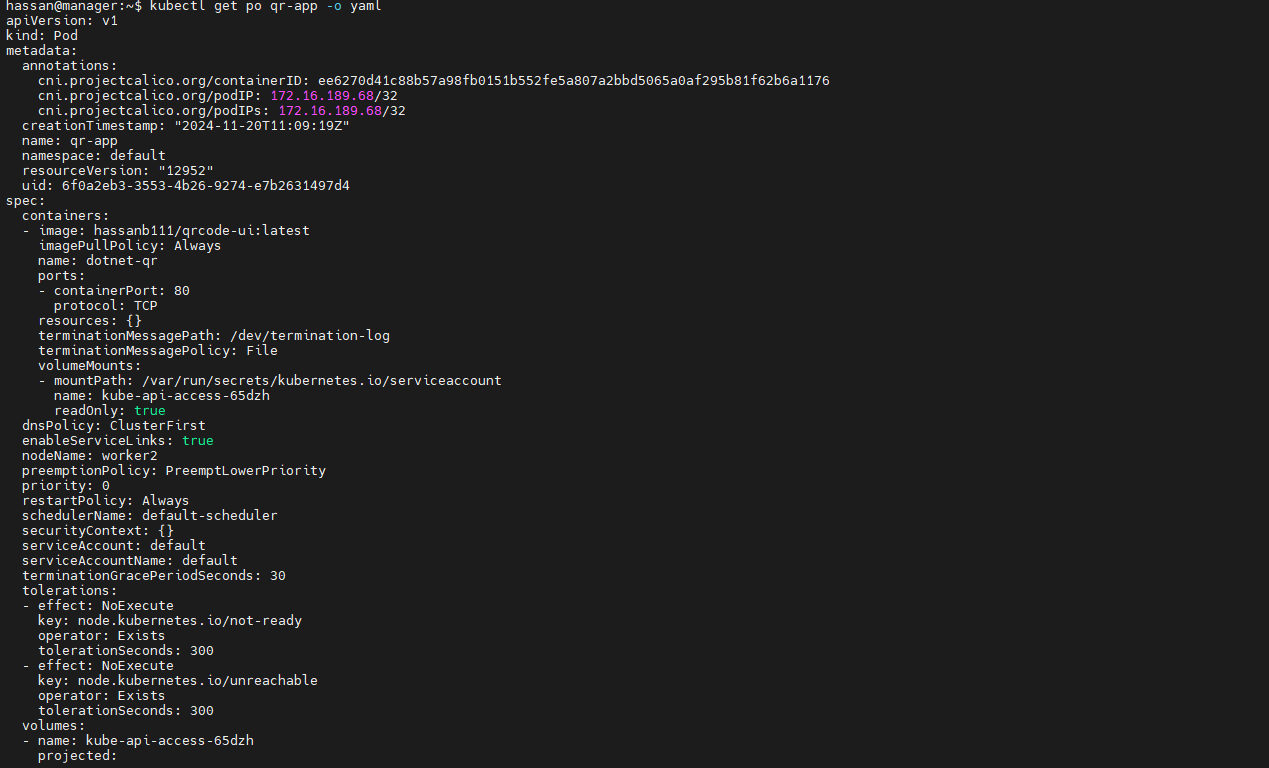
kubectl get po qr-app -o yamlThis displays the YAML file representing the pod
qr-app.View labels of pods:
kubectl get pods --show-labelsLabels provide metadata about applications, helping identify and organize resources.
Filter pods by labels:
kubectl get po -l "app=dev"This retrieves all pods where the label
app=devis present.Delete pods by labels:
kubectl delete po -l "app=dev"This deletes all pods with the label
app=dev.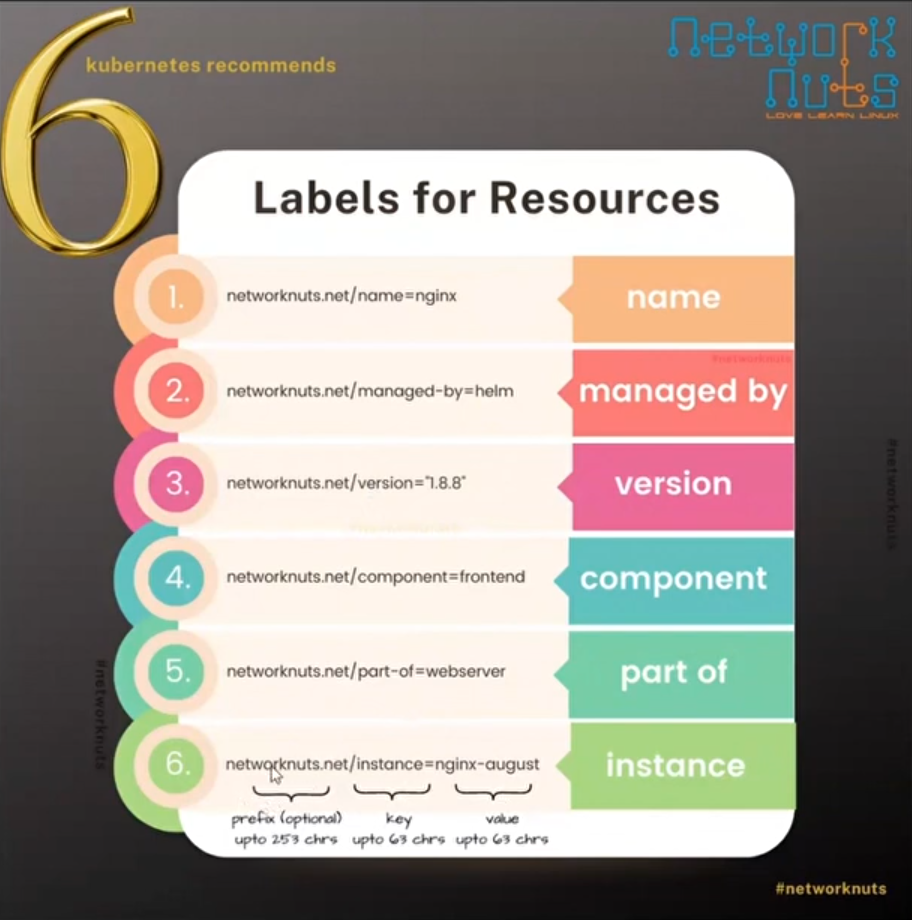
Kubernetes Labels: A Best Practice
Labels are key-value pairs attached to Kubernetes objects, providing meaningful metadata. Kubernetes recommends adding at least the following 5 labels for clarity:
name: Unique name for the application, e.g.,
abc.com/name=dotnetmanaged-by: Who or what manages this resource, e.g.,
abc.com/managed-by=hassanversion: Application version, e.g.,
v1.0component: Application component, e.g.,
abc.com/component=frontendpart-of: The larger application this component belongs to, e.g.,
abc.com/part-of=projectX
Label Selectors
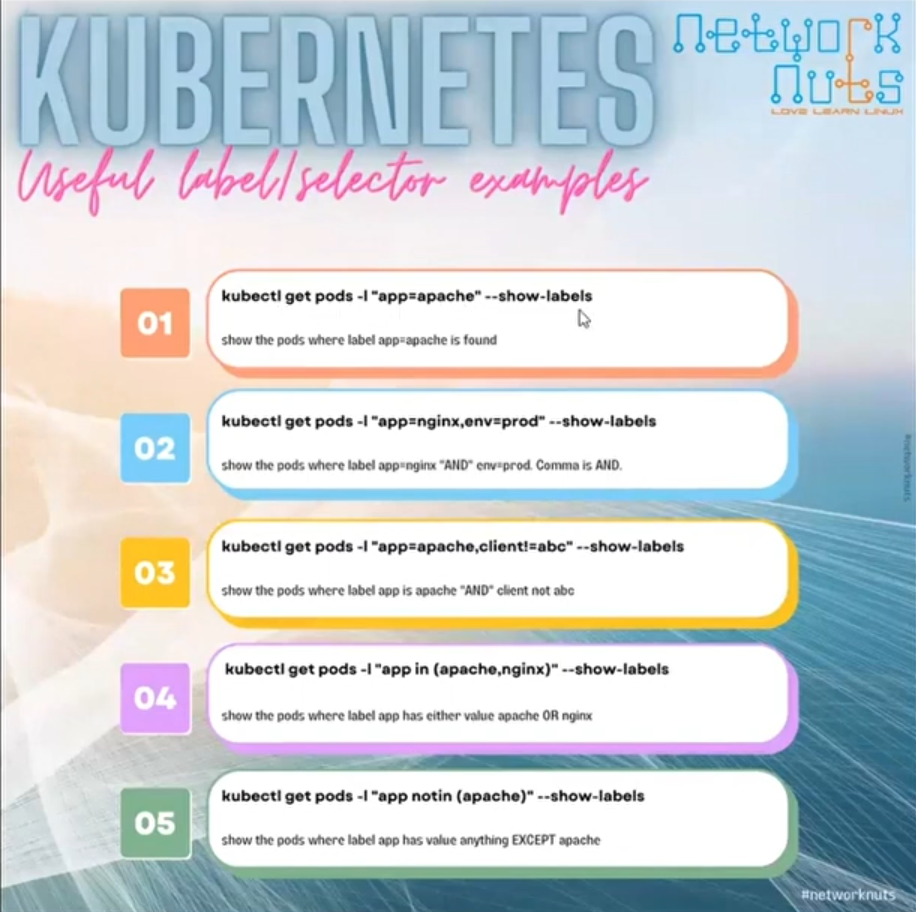
Label selectors allow you to filter Kubernetes objects based on specific criteria. Examples:
Basic selector: Find pods labeled with
app=nginx:kubectl get po -l "app=nginx" --show-labelsExclusion selector: Exclude pods labeled with
client=abc:kubectl get po -l "app=nginx,client!=abc" --show-labels
For more details on labels and selectors, visit the Kubernetes Documentation on Labels and Selectors.
Modifying Labels
Labels can be modified imperatively or declaratively:
Imperative approach:
kubectl label pod nginx managed-by=hassan- Note: This method updates the labels immediately but doesn't affect the Last Applied Configuration (LAC).
Declarative approach: Update the YAML file and reapply it using
kubectl apply. This method also updates the LAC, ensuring consistency.
Conclusion
Understanding commands like kubectl create and kubectl apply is essential for resource management in Kubernetes. Labels and selectors enhance your ability to organize and manage resources effectively. Adopting best practices such as recommended labels and leveraging LAC for tracking changes will improve your workflow.
Ready to explore more? Check out the official Kubernetes documentation for in-depth guidance.
About the author
Hey there! I'm currently working as an Associate DevOps Engineer, and I'm diving into popular DevOps tools like Azure Devops,Linux, Docker, Kubernetes,Terraform and Ansible. I'm also on the learning track with AWS certifications to amp up my cloud game. If you're into tech collaborations and exploring new horizons, let's connect!
Comments
Join the discussionNo comments yet. Be the first to comment.



