Automating APK Management: Retain Only the 4 Most Recent Versions Using PowerShell
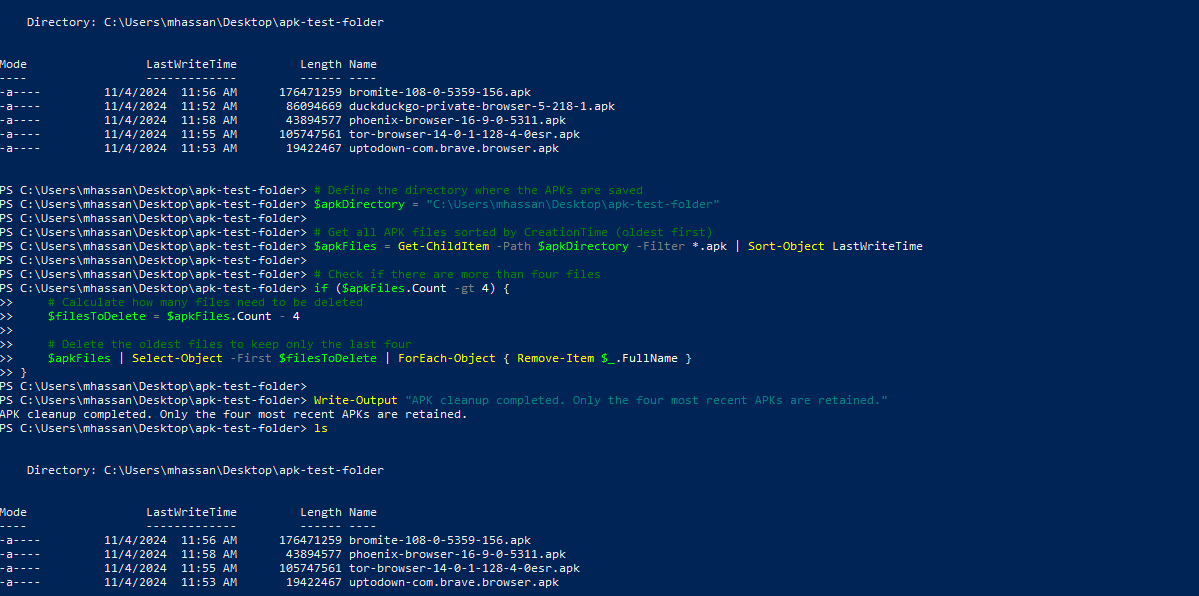
As app developers and DevOps professionals, managing build artifacts—especially large APK files—can become cumbersome. Each new build generates a new APK, and without periodic clean-up, these files quickly clutter storage, making it harder to locate specific versions and increasing costs. This guide walks you through automating APK management on a Windows server using PowerShell to maintain only the four most recent APK files, perfect for rollback purposes or storage optimization.
Why Automate APK Cleanup?
For projects with frequent releases, outdated files take up storage and may confuse team members searching for the latest versions. By limiting the number of stored APKs to a manageable number (such as the last four), you can:
Optimize server storage.
Ensure quick access to recent APKs.
Easily maintain rollback versions without manual intervention.
PowerShell Script Overview
Our PowerShell script is designed to keep only the four most recent APKs in a designated folder and delete older versions. We’ll first configure the folder path, then sort files by their creation date, and finally delete all files that fall outside the four most recent.
Step-by-Step Guide to Implementing APK Cleanup
Step 1: Setting Up the Folder Path
In this example, specify the directory where APK files are saved by setting the $apkDirectory variable. Adjust this path according to your server’s file structure:
# Define the directory where the APKs are saved
$apkDirectory = "C:\path\to\your\apk\folder"
Step 2: Writing the PowerShell Script
The core of this script sorts APK files by their last modified date, deletes the oldest if more than four are present, and keeps the four latest APK files:
# Define the directory where the APKs are saved
$apkDirectory = "C:\Users\mhassan\Desktop\apk-test-folder"

# Get all APK files sorted by CreationTime (oldest first)
$apkFiles = Get-ChildItem -Path $apkDirectory -Filter *.apk | Sort-Object LastWriteTime

# Check if there are more than four files
if ($apkFiles.Count -gt 4) {
    # Calculate how many files need to be deleted
    $filesToDelete = $apkFiles.Count - 4

    # Delete the oldest files to keep only the last four
    $apkFiles | Select-Object -First $filesToDelete | ForEach-Object { Remove-Item $_.FullName }
}

Write-Output "APK cleanup completed. Only the four most recent APKs are retained."
Explanation of the Code
$apkFiles = Get-ChildItem ... | Sort-Object LastWriteTime: This retrieves all APK files and sorts them by the last modified date, ensuring the oldest files come first.if ($apkFiles.Count -gt 4): This condition checks if there are more than four files.Select-Object -First $filesToDelete: Selects the oldest files for deletion, leaving only the latest four APKs in the folder.
Step 3: Testing the Script
To ensure it works as expected:
Place five APK files (or more) in the specified folder.
Run the script.
Check that only the four most recent files remain, with the oldest file deleted.
Integrating the Script into an Azure Pipeline
If you’re using an Azure DevOps pipeline to generate and release APKs, you can automate this PowerShell script within the pipeline to run after each new APK build and copy. Add a PowerShell task in the release stage to keep your storage clean and organized.
In the release stage of your pipeline, add a PowerShell task.
Configure the script path or paste it directly in the task configuration.
Set it to run on your Windows server where the APKs are stored.
Example Scenario
Here’s a sample scenario for how this would work:
Pipeline run 1:
apk1is generated and copied.Pipeline run 2-4:
apk2,apk3,apk4are generated, copied, and stored.Pipeline run 5:
apk5is generated, triggering the script to deleteapk1and retain onlyapk2throughapk5.
Each time a new APK is generated and copied, the script will maintain only the four most recent APKs, ensuring that your folder never contains more than four files.
About the author
Hey there! I'm currently working as an Associate DevOps Engineer, and I'm diving into popular DevOps tools like Azure Devops,Linux, Docker, Kubernetes,Terraform and Ansible. I'm also on the learning track with AWS certifications to amp up my cloud game. If you're into tech collaborations and exploring new horizons, let's connect!
Comments
Join the discussionNo comments yet. Be the first to comment.



