Resolving Merge Conflicts Using the Command Line and Azure DevOps

When working in a version-controlled environment like Git, it's common to encounter merge conflicts—especially when multiple contributors are working on the same codebase. This blog will walk you through how to resolve merge conflicts using the command line and Azure DevOps.
What is a Merge Conflict?
A merge conflict occurs when two or more branches have changes in the same section of a file, and Git doesn't know which change to keep. This happens when merging branches or rebasing, and requires manual intervention to resolve.
1. Resolving Merge Conflicts Using the Command Line
Step-by-Step Guide
Attempt the Merge:
First, you try to merge the branch you want to integrate into your current branch (e.g., merging
devintomain):git checkout main git merge devIf there are conflicts, Git will pause the merge and notify you about the conflict:
 Auto-merging turbo.json
 CONFLICT (content): Merge conflict in turbo.json
 Automatic merge failed; fix conflicts and then commit the result.
Check Which Files Have Conflicts:
To list all files with conflicts, you can use:
git statusor
git diff --name-only --diff-filter=UThis will show files that are in the "unmerged" state.
Open the Conflicted Files:
Open the conflicted files in your preferred editor (e.g.,
turbo.json). You’ll see markers that Git uses to indicate the conflicting sections:<<<<<<< HEAD Your changes in the current branch. ======= Changes from the branch you're trying to merge. >>>>>>> devHere:
HEADcontains the code from your current branch (e.g.,main).The part after
=======shows the incoming changes from the branch you’re merging (e.g.,dev).
Resolve the Conflict:
You need to manually edit the file, decide which changes to keep, and remove the conflict markers (
<<<<<<<,=======,>>>>>>>).Example of resolved content:
 jsonCopy code{
     "version": "1.0",
     "build": "npm run build-dev"
 }
Stage the Resolved Files:
Once the conflicts are resolved, mark the files as resolved by adding them to the staging area:
git add turbo.jsonComplete the Merge:
After staging all resolved files, finalize the merge by committing:
git commitThis will create a merge commit and successfully combine the two branches.
Push the Changes:
Finally, push your changes to the remote repository:
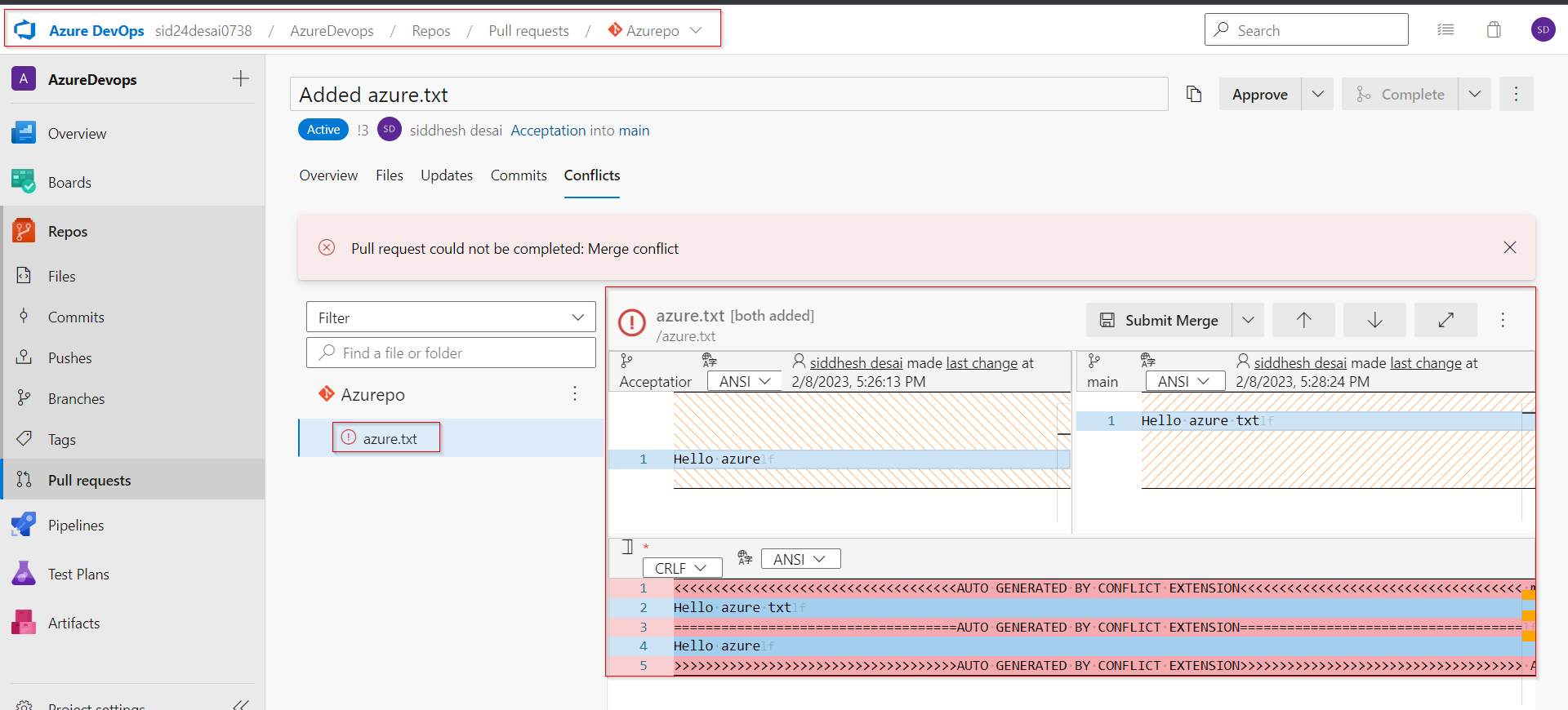
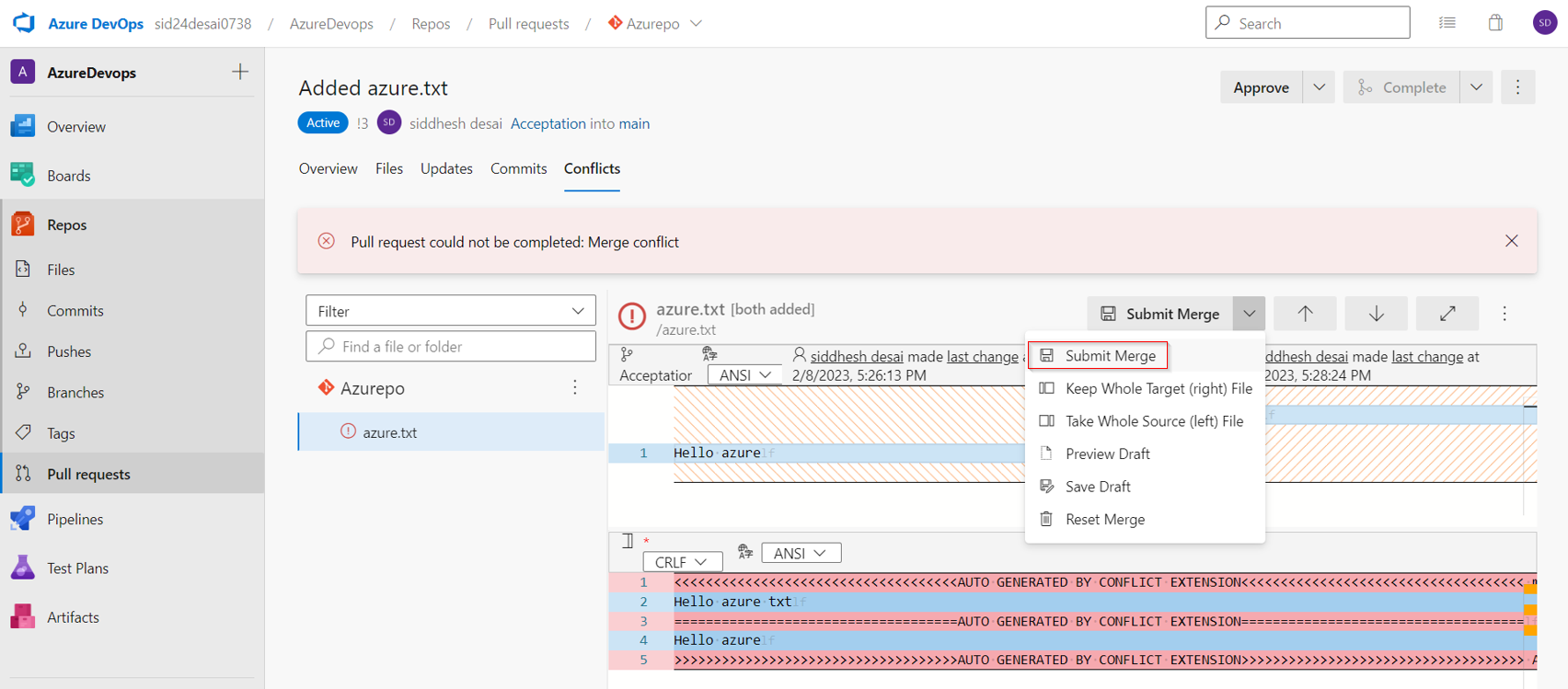
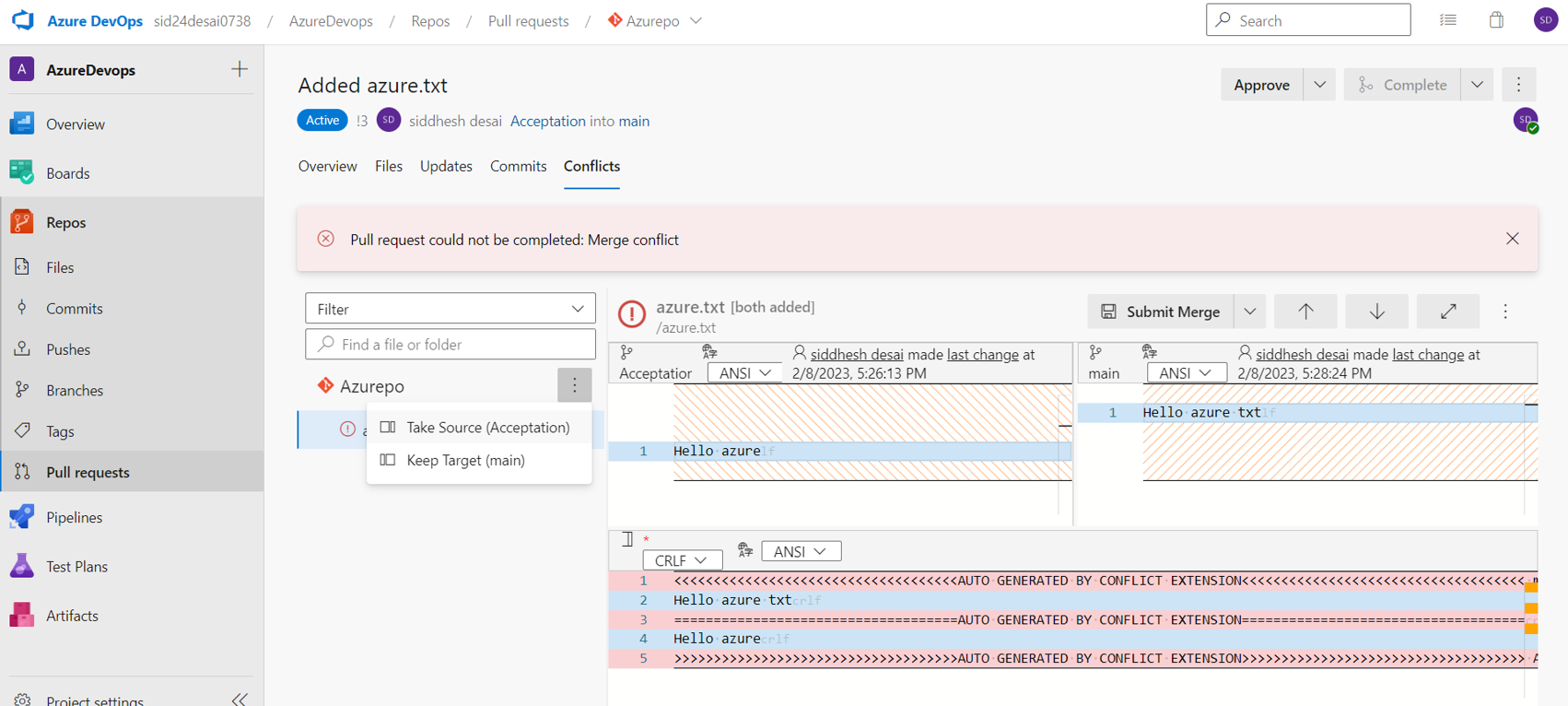
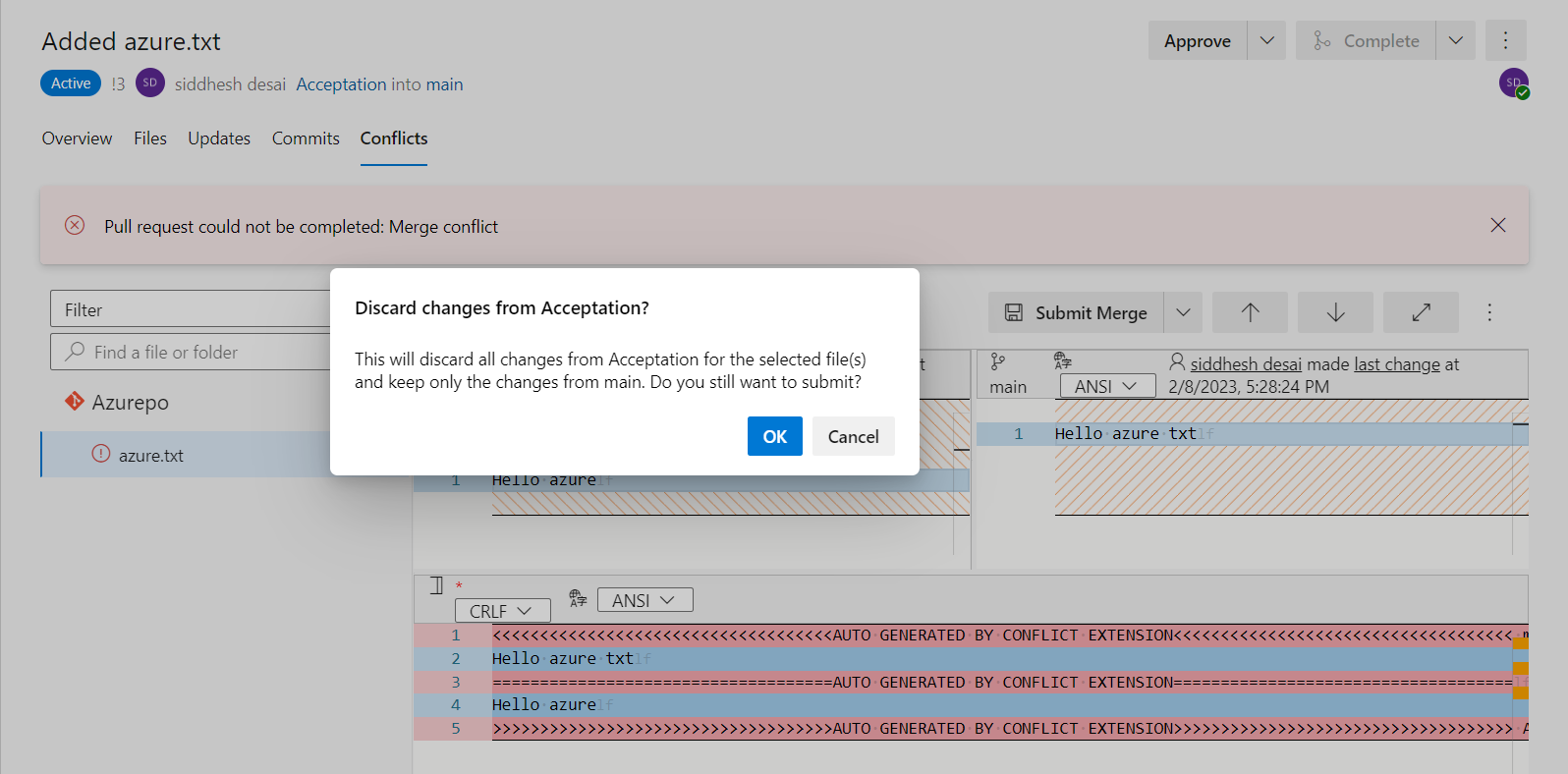
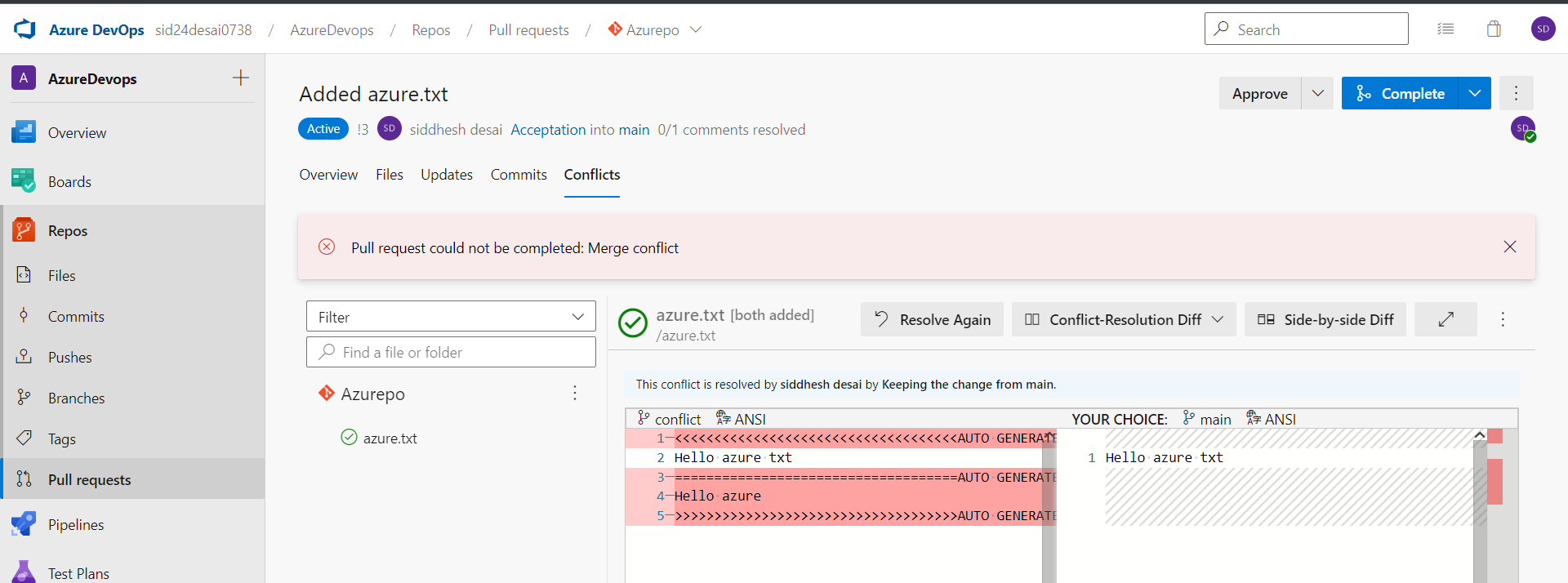
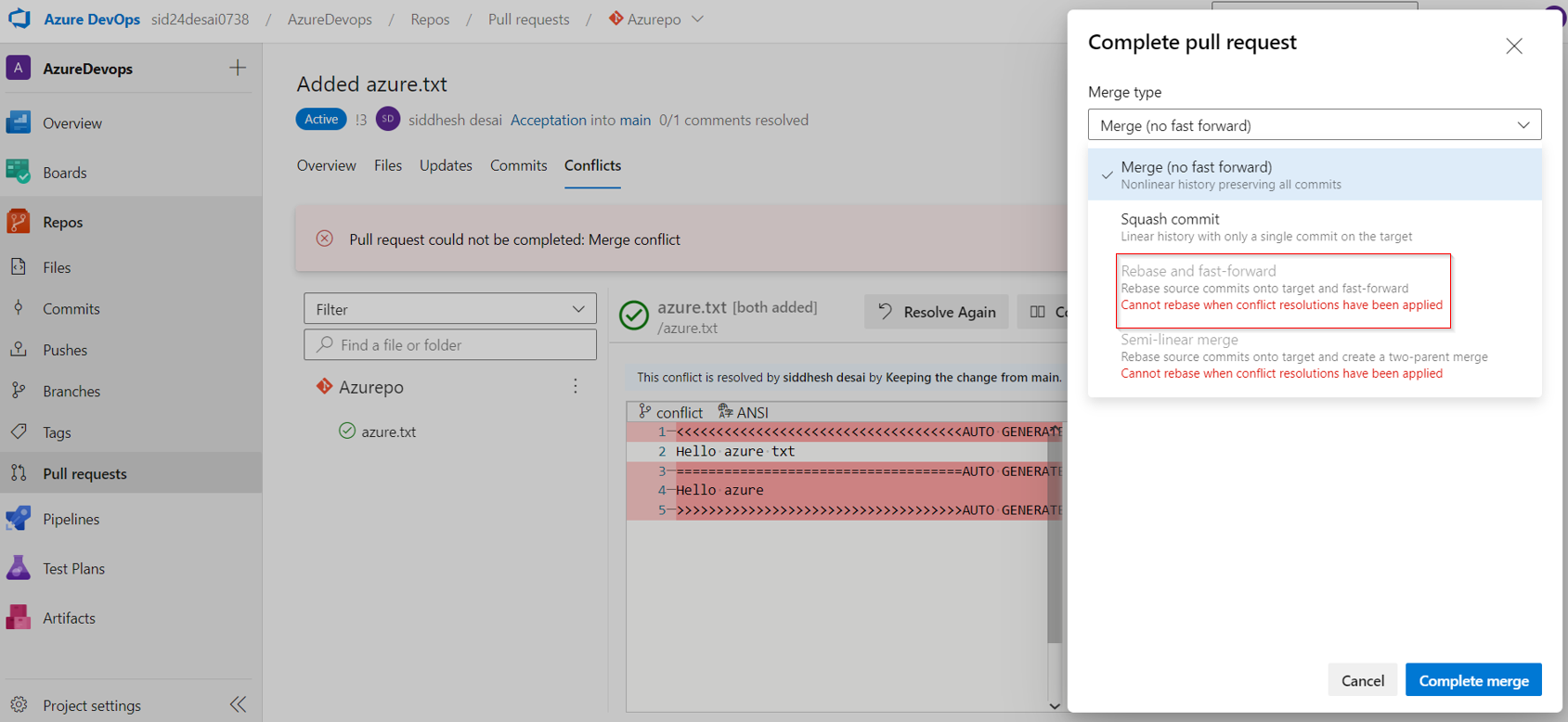
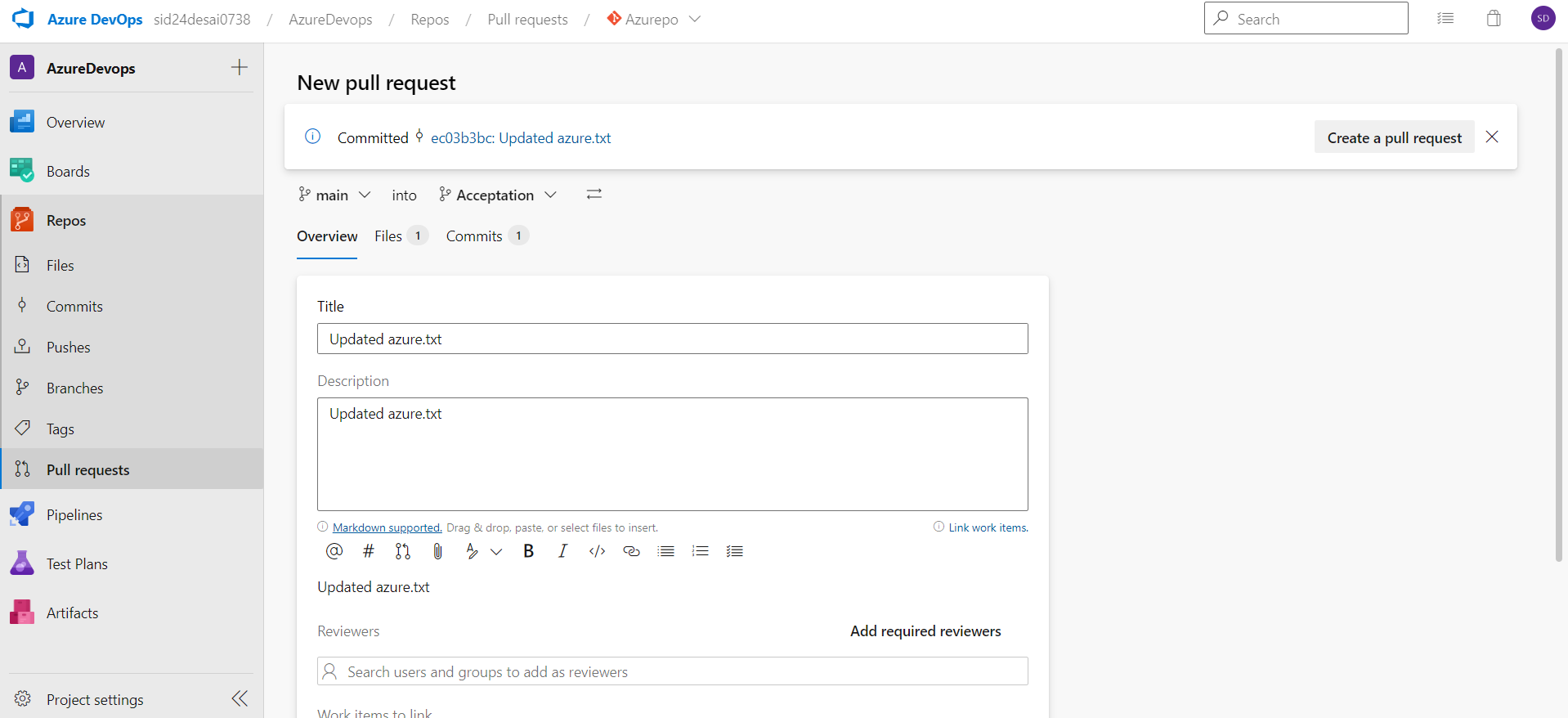
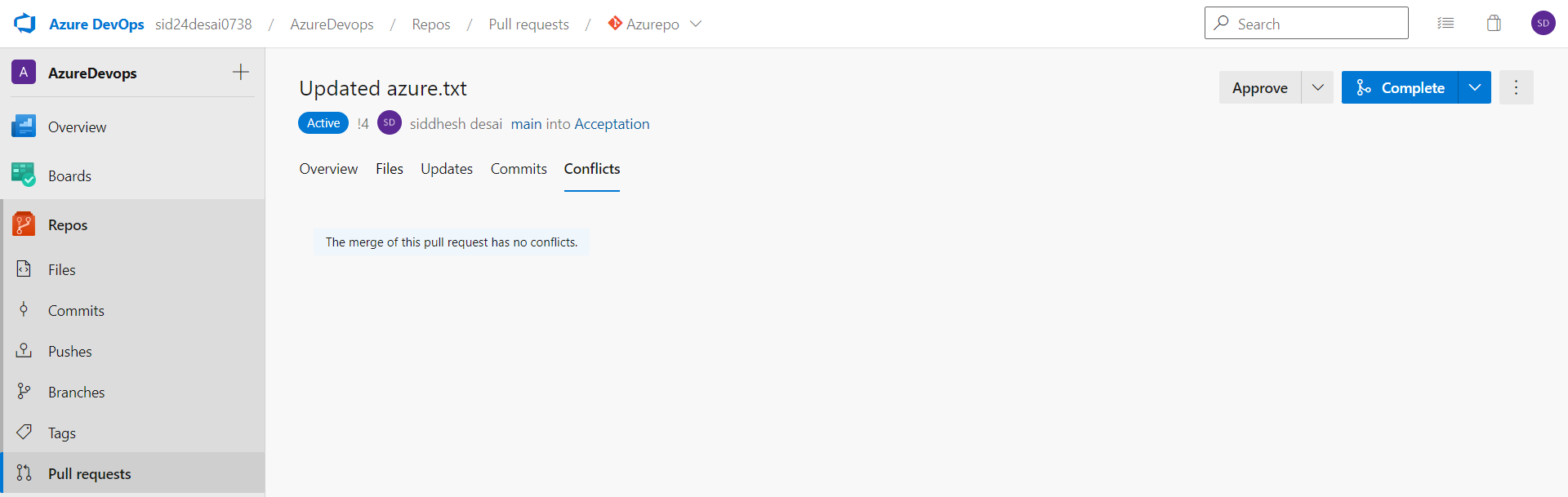
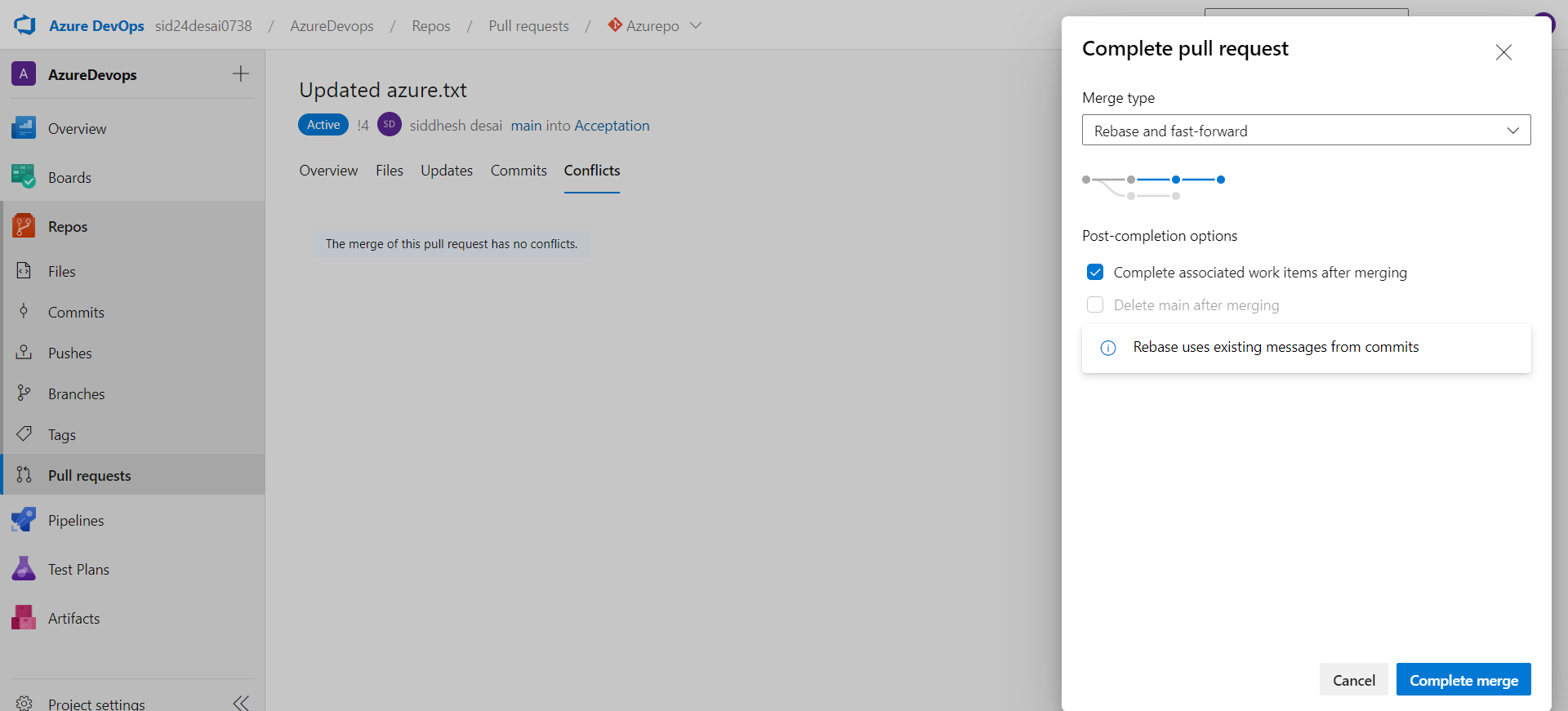
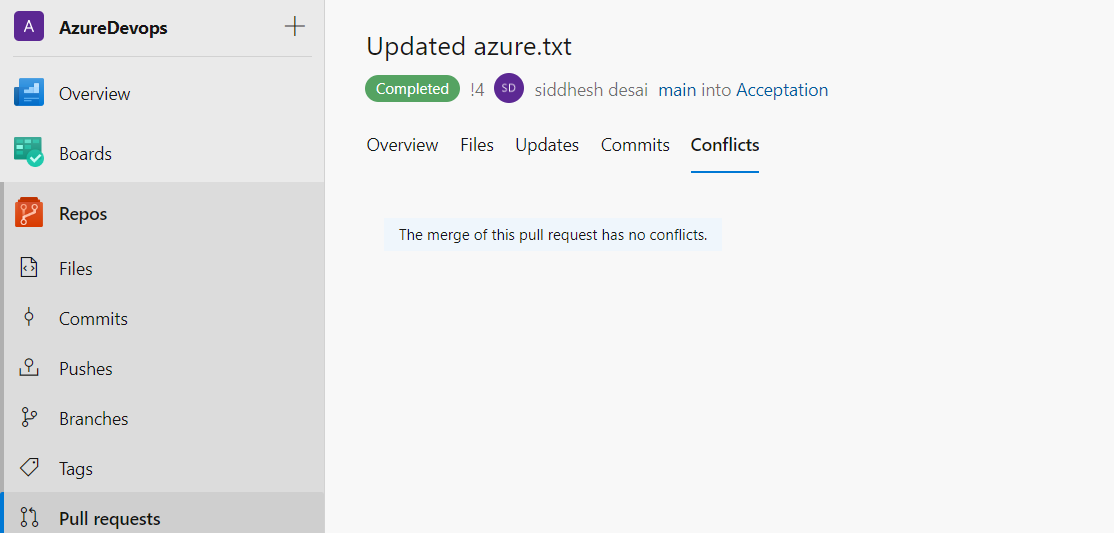
bashCopy codegit push origin mainResolving Merge Conflicts in Azure DevOps
About the author
Hey there! I'm currently working as an Associate DevOps Engineer, and I'm diving into popular DevOps tools like Azure Devops,Linux, Docker, Kubernetes,Terraform and Ansible. I'm also on the learning track with AWS certifications to amp up my cloud game. If you're into tech collaborations and exploring new horizons, let's connect!
Comments
Join the discussionNo comments yet. Be the first to comment.



